Posts

Showing posts with the label ASP.NET MVC 5

ASP.NET MVC 5 From Scratch : Create an ASP.NET MVC 5 Empty Project

Image
A lot of people think that you can only create one kind of ASP.NET MVC 5 project, the one with the sample application.  But the reality is that you can create an Empty ASP.NET MVC 5, you just need to do more work.  However, it is cleaner and you can add what you need, instead of having everything in place already like the default template.  So you might run into more errors with the empty project, but I think you will learn more about MVC than if you just have the default template.  Plus it's more streamline.  I always start with an empty project on my MVC projects.  In order to follow this tutorial you must have Visual Studio 2013 installed. Step-By-Step Instructions: Create a new project in Visual Studio call "MvcApp", by clicking on File → New → Project Select Visual C# → Web → ASP.NET Web Application, in the "Name:" field type the name "MvcApp", then click "OK"    3.  On the next screen select "Empty" on the "Select a templ...

ASP.NET MVC 5 From Scratch : Add KnockoutJs to Project With NuGet

Image
In this blog we will add the KnockoutJs JavaScript library to our MvcApp project.  KnockoutJs is a great lightweight data binding library.  Follow the steps below to add KnockoutJs to your ASP.NET MVC project. Step-By-Step Instructions : 1.  Right-click on the project's "References" node, then select "Manage NuGet Packages" 2. In right hand side type in "knockoutjs", then click on the "Install" button next to the knockoutjs package   3.  You should see a green checkmark after you finished adding the knockoutjs library to the MvcApp project. 4. In the "Scripts" folder you will see the knockout JavaScript files 5.  Now that we have the knockoutjs files we need to add the files to the BundleConfig.cs file to register them 6.  Open the BundleConfig.cs file in the "App_Start" folder type the following lines of code inside the RegisterBundles method, this tells MVC to include any files in the "Scripts" folder that sta...

ASP.NET MVC 5 From Scratch : Create Entity Data Model With Entity Framework

Image
In our previous blogs we've created an ASP.NET MVC from scratch.  In this blog we are going to use Entity Framework as the ORM (Object Relational Mapping) as a conduit to our database, so that we can query our data as an object.  An ORM as the name implies maps database tables, views, and stored procedures as objects in a programming language so that developers can work with the data as objects. Step-by-Step Instructions: 1.  First we need to add the Entity Framework 6.1.3 to our ASP.NET MVC, we accomplish by right-click on "References" then select "Manage NuGet Packages" 2. On the search box type in "EntityFramework" no spaces, in the search result click on the "Install" button next to the "EntityFramework" package. 3.  Click "I Accept" on the "Licence Acceptance" screen 4. Click "Close" 5.  Once the "EntityFramework" package has been added you will see a green checkmark next to the "E...

ASP.NET MVC 5 From Scratch : Adding BundleConfig

Image
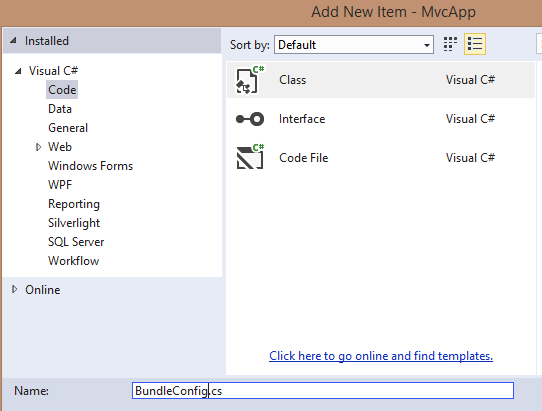
In our previous blog we've added a _ViewStart.cshtml layout to our project, which is the default layout for our pages if no layout is specified for the page.  In this blog we will add BundleConfig for the JavaScript libraries which includes JQuery , and Bootstrap that we've added to our MvcApp project in the previous blogs.  A configuration bundle allows you to group files that belongs in the same libraries together so that they can called with just one line of code.  In this blog we will be creating configuration bundles for JQuery, and Bootstrap to the MvcApp project. Step-By-Step Instructions : 1.  Right-click on the folder "App_Start", then select Add → New Item → Visual C# → Class, name the class BundleConfig.cs 2.  Now the App_Start folder should look like the screenshot below 3.  Open the BundleConfig.cs file, then delete the existing using statements, and then add the following namespaces using System.Web; using System.Web.Optimization; 4. The resu...

ASP.NET MVC 5 From Scratch : Add JQuery Library Using NuGet

Image
In the previous blog we've created an empty ASP.NET MVC 5 project.  It's a great starting point but, it's missing a lot things that we will need later.  In this blog we will add JQuery to the empty ASP.NET MVC 5 project that we've just created. Step-By-Step Instructions: 1. Open the empty ASP.NET MVC 5 project that you've just created 2.  Right click on the the "References" node in the "Solution Explorer", then select "Manage NuGet Packages" 3. In the search box on the right of NuGet window type "JQuery", the search result will be displayed 4. Click on the "Install" button next to the JQuery result, it should be at the top of the list 5. Once the JQuery library has been installed a green check mark is displayed, click on the "Close" button 6.  Now you should see the JQuery scripts in the "Scripts" folder 7.  To use the JQuery .js script reference the jquery-2.14.min.js file with the following code...

ASP.NET MVC 5 From Scratch : _ViewStart.cshtml The Default Layout

Image
In ASP.NET MVC there is a default layout file that the application use when one exists.  If you look at the markup at the top of the "Index.cshtml" file you will see that there is a markup to specify the layout of the page in the code below. @{ Layout = null; } The code above tells ASP.NET MVC to not assign any layout to the page because it is being set to null. In this blog we will build on our existing MvcApp project and add a default layout view to the project so that each page in the project will have a common layout.  This is similar what you would a master page for in web forms. Step-By-Step Instructions: 1. Open the MvcApp project in Visual Studio 2.  Right-click on the Views folder then select Add → New Item 3. Now select Visual C# → Web → Razor → Web Page (Razor v3) , name the file _ViewStart.cshtml, then click "Add" 4.  Now you will see the _ViewStart.cshtml file in the "Views" folder 5.  Delete all the markup in the _ViewStart.cshtml file, t...