Posts

Showing posts with the label JQuery

ASP.NET Core : Add jQuery, Bootstrap, AngularJS Using bower.json

Image
In this blog post we are going to add the jQuery, AngularJS, and bootstrap libraries to our ASP.NET Core application.  Normally we will use NuGet to bring in these libraries but ASP.NET Core gives you the option to use bower to configure the dependencies that you will need on the client-side. Here are the steps to import the client-side dependencies into our project: 1. First let's make bower.json part of the "NorthwindCafe.Web" project, by right click on the bower.json file, and then choose "Show in Solution Explorer" 2.  Open the bower.json file the markup should look like this { "name": "asp.net", "private": true, "dependencies": { } } 3. Change the markup to look like the following { "name": "asp.net", "private": true, "dependencies": { "bootstrap": "~3.3.6", "angular": "~1.5.7" } } 4. Save the bower.js...
ASP.NET MVC 5 From Scratch : Adding BundleConfig

Image
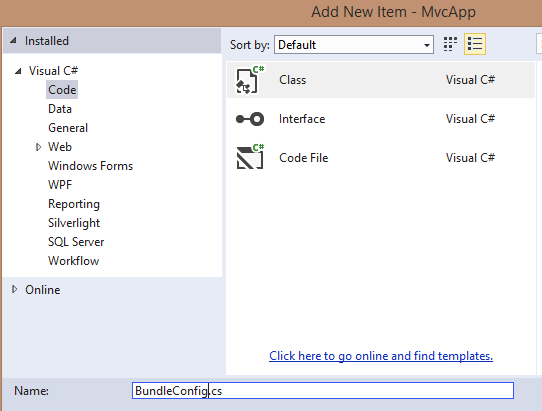
In our previous blog we've added a _ViewStart.cshtml layout to our project, which is the default layout for our pages if no layout is specified for the page.  In this blog we will add BundleConfig for the JavaScript libraries which includes JQuery , and Bootstrap that we've added to our MvcApp project in the previous blogs.  A configuration bundle allows you to group files that belongs in the same libraries together so that they can called with just one line of code.  In this blog we will be creating configuration bundles for JQuery, and Bootstrap to the MvcApp project. Step-By-Step Instructions : 1.  Right-click on the folder "App_Start", then select Add → New Item → Visual C# → Class, name the class BundleConfig.cs 2.  Now the App_Start folder should look like the screenshot below 3.  Open the BundleConfig.cs file, then delete the existing using statements, and then add the following namespaces using System.Web; using System.Web.Optimization; 4. The resu...

ASP.NET MVC 5 From Scratch : Add JQuery Library Using NuGet

Image
In the previous blog we've created an empty ASP.NET MVC 5 project.  It's a great starting point but, it's missing a lot things that we will need later.  In this blog we will add JQuery to the empty ASP.NET MVC 5 project that we've just created. Step-By-Step Instructions: 1. Open the empty ASP.NET MVC 5 project that you've just created 2.  Right click on the the "References" node in the "Solution Explorer", then select "Manage NuGet Packages" 3. In the search box on the right of NuGet window type "JQuery", the search result will be displayed 4. Click on the "Install" button next to the JQuery result, it should be at the top of the list 5. Once the JQuery library has been installed a green check mark is displayed, click on the "Close" button 6.  Now you should see the JQuery scripts in the "Scripts" folder 7.  To use the JQuery .js script reference the jquery-2.14.min.js file with the following code...

ASP.NET MVC 5 From Scratch : Add JQuery UI Library Using NuGet

Image
In the previous blog we've added the Bootstrap library to our empty ASP.NET MVC project.  Now let's add another commonly used JQuery library to our project.  In this blog we will add the JQuery UI library to our empty project. Step-By-Step Instructions: 1. Open the empty ASP.NET MVC 5 project that you've just created 2.  Right click on the the "References" node in the "Solution Explorer", then select "Manage NuGet Packages" 3.  In the search box on the right of NuGet window type "jquery ui combined", the search result will be displayed, the package that you want to install is highlighted below.  Notice it's the third choice which is called the jQuery UI (Combined Library) 4.  Click on the "Install" button next to the "jQuery UI (Combined Library)" package. 5.  Once the JQuery UI library has been installed a green check mark is displayed, click on the "Close" button 6.  Now you should see the JQuery UI...

ASP.NET MVC 5 From Scratch : Add Bootstrap Library Using NuGet

Image
In the previous blog we've created added the JQuery library to an empty ASP.NET MVC 5 project. In this blog we will add the Bootstrap to the empty ASP.NET MVC 5 project that we've just created. Step by Step Instructions: 1. Open the empty ASP.NET MVC 5 project that you've just created 2.  Right click on the the "References" node in the "Solution Explorer", then select "Manage NuGet Packages" 3.  In the search box on the right of NuGet window type "bootstrap", the search result will be displayed 4. Click on the "Install" button next to the "Bootstrap" result, it should be at the top of the list 5.  Once the Bootstrap library has been installed a green check mark is displayed, click on the "Close" button 6.  Now you should see the Bootstrap scripts in the "Scripts" folder 7.  You will also noticed that the "Contents" folder has been created, this folder was created when NuGet installed...

ASP.NET MVC 5 From Scratch : Configure The BundleConfig Class To Use CDN

Image
A lot of developers assumed that they can only configure the BundleConfig class to use only local resources in their MVC project.  That is not the case, in fact it is quite easy to use a cdn version of your JavaScript libraries instead of the one in your local folder.  In the previous blog  we went over how to create the BundleConfig class from scratch.  In this blog we will go over how to configure MVC to use the cdn resource instead of your local resource files. Step-By-Step Instructions: 1.  Open the MvcApp project 2.  Open the BundleConfig.cs file under the folder App_Start 3.  From the last blog we have the following code using System.Web; using System.Web.Optimization; namespace MvcApp { public class BundleConfig { public static void RegisterBundles(BundleCollection bundles) { bundles.Add(new ScriptBundle("~/bundles/jquery").Include("~/Scripts/jquery-{version}.js")); bundles.Add(new ScriptBundle("~/...

ASP.NET MVC 5 From Scratch : Using Conditional Comments to Support Older Versions Of IE

Older versions of IE have problems supporting the newer JavaScript libraries and HTML5 tags.  In the previous blog we've created responsive layout in ASP.NET MVC.  In this blog we are going to use conditional comments to support older versions of Internet Explorer (IE).  Since IE 9 seems to be the cutoff point we will use it in our conditional comment base condition to decide whether we want to do something different to support IE.  We will be working with the MvcApp project. Step-By-Step Instructions : 1.  Open the MvcApp application 2.  Open the _Layout.cshtml 3.  Inside the <head> tag <!--[if lt IE 9]> <script src="https://oss.maxcdn.com/html5shiv/3.7.2/html5shiv.min.js"></script> <script src="https://oss.maxcdn.com/respond/1.4.2/respond.min.js"></script> <script src="http://ajax.googleapis.com/ajax/libs/jquery/1.11.2/jquery.min.js"></script> <![endif]--> The code above ...

ASP.NET MVC 5 From Scratch : Create A Responsive Layout With Bootstrap

Image
In our previous blog we created a simple _Layout.cshtml file that does not have any markup just to make things simple.  In this blog we will use Bootstrap to make the layout look more professional and responsive, so that it can be viewed in any screen size.  The previous layout looks like screenshot below. The Bootstrap version will look like the screenshot below. Step-By-Step Instructions: 1.  Open the MvcApp project 2. Open the BundleConfig.cs file in the App_Start folder and type in the following code using System.Web; using System.Web.Optimization; namespace MvcApp { public class BundleConfig { public static void RegisterBundles(BundleCollection bundles) { bundles.Add(new ScriptBundle("~/bundles/jquery", "https://ajax.googleapis.com/ajax/libs/jquery/ 2.1.4/jquery.min.js").Include("~/Scripts/jquery-{version}.js")); bundles.Add(new ScriptBundle("~/bundles/bootstrap","https://maxcdn.bootstrap...

JQuery : jQuery.noConflict(); Resolve the $ Conflict

Image
The JQuery library by design uses only two global namespace so that it would not conflict with other JavaScript libraries. $ - the dollar is used as a reference to JQuery namespace Also used by Prototype library, YUI and mootools jQuery - is also used to reference to jQuery namespace, this the more unique reference of the two options, but nobody really uses it So what do you do if you wanted to use jQuey and Prototype on the same page?  Well jQuery can concede the $ sign to the other libraries with the code jQuery.noConflict() function This sample code shows how jQuery gives up the $ sign to the JavaScript library Prototype <!DOCTYPE html> <head> <meta charset="UTF-8"> <title>JQuery No Conflict</title> <script src="http://ajax.googleapis.com/ajax/libs/prototype/1.7.2.0/prototype.js"></script> <script src="http://ajax.googleapis.com/ajax/libs/jquery/1.11.1/jquery.min.js"></script> <script type="t...

JQuery: Search Context Parameter (Select Within A Container)

Image
There's actually two selector parameters in JQuery.  The second parameter is the context parameter.  The context parameter specify the context that the selector should operate within that context.  Let's use the bootstrap form field markup below as an example: <!DOCTYPE html> <html lang="en"> <head> <meta charset="utf-8" /> <script src="http://code.jquery.com/jquery-1.11.2.min.js"></script> <script src="https://maxcdn.bootstrapcdn.com/bootstrap/3.3.2/js/bootstrap.min.js"></script> <!-- Latest compiled and minified CSS --> <link rel="stylesheet" href="https://maxcdn.bootstrapcdn.com/bootstrap/3.3.2/css/bootstrap.min.css"> <!-- Optional theme --> <link rel="stylesheet" href="https://maxcdn.bootstrapcdn.com/bootstrap/3.3.2/css/bootstrap-theme.min.css"> <title></title> <style> .form-label-s...

JQuery Basics : Selecting Attributes

Image
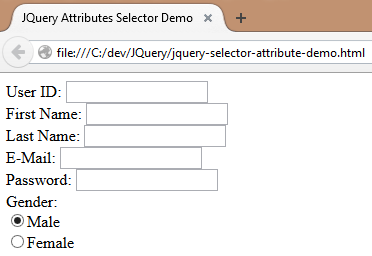
In the previous blog about selectors we've gone over what a selector is.  In this blog we will something that is a little more advance and use JQuery to select the attributes within a HTML element.  Most HTML elements have attributes associated with them for example the <input> element has the id, name, and type in them. So let's create a typical registration form input fields for this example and use JQuery to select the form fields according to what attributes the form fields have: <html lang="en"> <head> <meta charset="utf-8" /> <title>JQuery Attributes Selector Demo</title> <script src="http://ajax.googleapis.com/ajax/libs/jquery/2.1.3/jquery.min.js"></script> <script> </script> </head> <body> <form> User ID: <input name="UserId" type="text"><br/> First Name: <input name="First Name...

JQuery: Using Conditional Comments To Support Older Version Of Internet Explorer

Image
A lot of you may have wonder why JQuery releases versions 1.x and 2.x, the reason is because the 1.x versions are released to support older versions of Internet Explorer.   What a lot of people don't realize is that the 2.x version performs better, so if you have the choice between 1.x and 2.x you should choose the 2.x versions. Use the 1.x versions only if you have to.  In this blog we will show how to use conditional comments which Microsoft created in Internet Explorer 5.  Since it's specifically created for Internet Explorer other browsers will ignore it.   Since Internet Explorer 9 seems to be the divider for support we will use it as the base case for our conditional comments.  Here is the code to use the conditional comments to support older versions of Internet Explorer. <html <head> <meta charset="utf-8" /> <title>JQuery Conditional Comments Demo</title> <!-- [if lt IE 9]> <script src="http://...

JQuery Basics: Selectors

Image
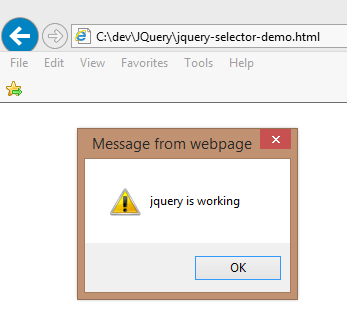
Selectors are at the heart of JQuery in almost every task you want to perform in JQuery, your initial setup is to use a selector to select an element in the DOM to perform some action on it.  So in this blog we will show you some the common selectors that you will have to use in JQuery to get the job done. First let's make sure JQuery is working by creating an HTML file with a little JQuery test script in it: <html lang="en"> <head> <meta charset="utf-8" /> <title>JQuery Selector Demo</title> <script src="http://ajax.googleapis.com/ajax/libs/jquery/1.11.2/jquery.min.js"></script> <script> $(document).ready(alert("jquery is working")); </script> </head> <body> </body> </html> When you run the page with the code in your browser you should see the following: Now that we know that JQuery is working change the html markup to the ...