Posts

SQL: Wildcard Search With The LIKE Operator

Image
Equality searches are great and efficient when you want exact matches or range of values. However, there will be times when you need to search a text field for not so perfect matches, perhaps a partial match is needed. Certain scenarios requires to search for patterns, such as an email address. That's when the LIKE operator is useful in SQL. The only caveat is that LIKE operators can only work with text fields. Examples: 1. A word/text with a % at the end, searches for all the records that begins with the letters before the percent sign SELECT ProductName,UnitPrice FROM Products WHERE ProductName LIKE 'Chef%' The query above returns all the records in the Products table that begins with the word "Chef"  2. A word with % sign on both ends, means that the result will be any records that contains the enclosed word/text within the % sign SELECT ProductName,UnitPrice FROM Products WHERE ProductName LIKE '%Hot%' The query above searches for any records t...

SQL: Querying NULL Records in SQL Server

Image
As a developer we always forget how to query for records with NULL values, no matter how many times we do it. It's just weird. Our first instinct is to write the query as such SELECT CompanyName, ContactName, ContactTitle,Region FROM Customers WHERE Region = NULL But that will not return any results. The funny thing is there's no SQL error so you think that there's no results. However if you change the query to this SELECT CompanyName, ContactName, ContactTitle,Region FROM Customers WHERE Region IS NULL You see there's plenty of records with Region IS NULL The reverse is true if you want records that are not NULL you would not write the query like this SELECT CompanyName, ContactName, ContactTitle,Region FROM Customers WHERE Region != NULL But you want to write the query like this instead SELECT CompanyName, ContactName, ContactTitle,Region FROM Customers WHERE Region IS NOT NULL

SQL: Sort By Multiple Columns

Image
SELECT UnitPrice, ProductName FROM Products ORDER BY UnitPrice DESC, ProductName The query above sorts the results based on the most expensive products, and then the product name. Useful if you want a secondary sort criteria. For example if there are multiple products that are $14.00 then those products will be sorted by their names after the price has been sorted.

HTML5: Mark Element

The <mark> element is used to highlight a text by assigning a background-color attribute Example: This is an example of the <mark style="background-color:yellow;">mark</mark> element This is an example of the mark element

HTML5 : Progress Element

<progress> element represents the progress of a task or goals and objectives, there are two ways that you can set this element, they are the following Determinate - know in advance the starting and ending values Indeterminate - end value is unknown in advance (remove value attribute) Determinate Example: <p>Our goal is to have 500 runners: </p> 0 <progress value=”250” max=”500”></progress> 500 Our goal is to have 500 runners: 0 500 Indeterminate Example: <p>Please wait while we download your TPS Report!</p> <progress></progress> Please wait while we download your TPS Report!

Installing AdventureWorks Sample Databases from Microsoft

Image
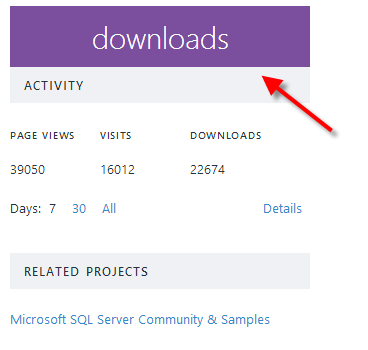
1. Type in the following URL into your browser's address bar       http://msftdbprodsamples.codeplex.com/ 2.  Click on the "Download" button on page 3.  Click on the recommended download link 4.  Unizp the file you just downloaded 5.  Open the SQL Server Management Studio, then right click on "Databases" and then select "Restore Database" 6.  Select "Device" under "Source" 7.  Click on the "..." button, and the "Select" backup devices will appear, select "File" for "Backup media type" 8.  Click on the "Add" button, and select the "AdventureWorks2014.bak" file, then click "OK" 8.  Click "OK" on the "Select backup devices" screen 9.  Click "OK" on "Restore Database" window 10.  A message will pop up that says you have successfully restored the AdventureWorks2014 database 11.  The "AdventureWorks2014" database is now ...

Entity Framework Part 1: Installing Entity Framework 6.1.1 With NuGet

Image
In this blog I will show how to install Entity Framework 6.1.1 with NuGet in Visual Studio 2013 1.  Create a project call "Northwind" 2.  Right click on the solution that the project resides in, then select "Manage NuGet Packages for Solution...." 3.  The "Manage NuGet Packages" window is displayed 4.  In left hand side select "Online", and then select "nuget.org" 5.  In the "Search Online" textbox type in the word "EntityFramework", this will search for the latest version of EntityFramework available 6.  Click on the "Install" button 7.  Select the project you want install EntityFramework to be installed in, then click on "OK" 8. Click "OK" to accept the terms and conditions 9.  When the Entity Framework is installed you will see a check mark next to package 10.  Now you will see the the project has references to the Entity Framework DLLs Blogs in the Entity Framework Series: Installing...